Ready To Go with New Layout

The last few months of my life have been very hectic but I’m back now and ready to go with some new layouts, tutorials, reviews and more.  I made today’s layout with a free mini kit I got on our Digi Scrapping Freebies group on Facebook.  The photo is of my precious grand babies.  Big sister made a “tent” in the living room and her and baby brother were watching TV.

Love My Grands020814

She made the tent Friday evening for Family Movie Night but it’s always more fun to watch TV in a tent so it got to stay up all weekend.

When I found this free digital scrapbooking kit by The Scrappy Penguin I thought it was perfect.  You can find it on our Freebies Facebook group here.  I used My Memories Suite scrapbooking software to make this layout.  You can click the link on the right side of my page then enter my coupon code for $10 off plus get a $10 store coupon with the confirming email when your purchase is complete.

Get a Free Scrapbook Kit Perfect for Valentine's Day!

Valentine’s day is just around the corner and I’m sure you’ll have loads of pictures that you will want to scrap so check out this free kit.  Digital scrapbook designers are a very generous group that regularly give away free scrapbooking kits.  This kit it just lovely.  It will be a perfect addition to your scrapbooking stash and just in time for Valentine’s day.  It will be available until January 26.

Free Digital Scrapbooking Kit

If you haven’t already purchased scrapbooking software, what’s holding you back?  You can download My Memories Suite version 5 today and save $10.  In addition, you’ll get an email with a coupon for $10 off in the My Memories store. Plus, you’ll get this free kit.  Happy Valentine’s Day!  You can get the software simply by entering this code at checkout STMMMS57865.  Just copy & paste the code so there are no typos. You’ll find the free kit here.

Finally! Let the My Memories Suite v5 Reviews Begin

My Memories Suite finally released an update to fix the bugs in version 5.  It’s very frustrating because every year My Memories Suite has a new release but they leave it to their customers to identify any problems associated with the release.  In the past I’ve downloaded the new version as soon as it’s available but then I’d have to spend a lot of time working with technical support resolving problems.  So when the new version was released, in November 2013, I resisted the urge to download it immediately.  I read about the issues that others were experiencing and waited for the fixes.

My Memories Suite V5-Available-Now

While I was waiting I couldn’t write any new tutorials.  I knew the software had a whole new look so if I had written any new tutorials they’d be rendered obsolete if only because of the new look.  During that time I couldn’t recommend the software either knowing there were many issues to be resolved.  And since I hadn’t downloaded the new version I couldn’t answer any questions or assist with any problems.  I was very frustrated!

As soon as I heard the update had been released I downloaded the software and started testing it.  I do like the new look and there are some new features I’m looking forward to trying.  In the next few weeks I’ll be working on updating tutorials and reviewing the software.  I’ve already updated one tutorial on color blocking using the photo-tiling feature. There wasn’t much to do since that feature still works the same.  Check out the tutorial here.

Since you can now export pages and albums in pdf format I’m testing that with the color blocking tutorial.  I’d love to know what you think.  Please make comments on this post or on my Facebook page at facebook.com/Scraptious to let me know if you like it or not.

Photo Tiling Tutorial is Now Available

Have you seen any layouts using the photo tiling feature in My Memories Suite?  That is one of my favorite features added in version 4.  If you love the look too, I’ve created a tutorial to show you how to use photo tiling in your layouts.  You can find the tutorial here and I’ve included another example below using this feature.

This example is very similar to one of the layouts in the tutorial but for this layout I used the original photo for the entire background.  I also used the photo effect feature to change it to black & white.

What About Blog Posts-004

Setting Preferences

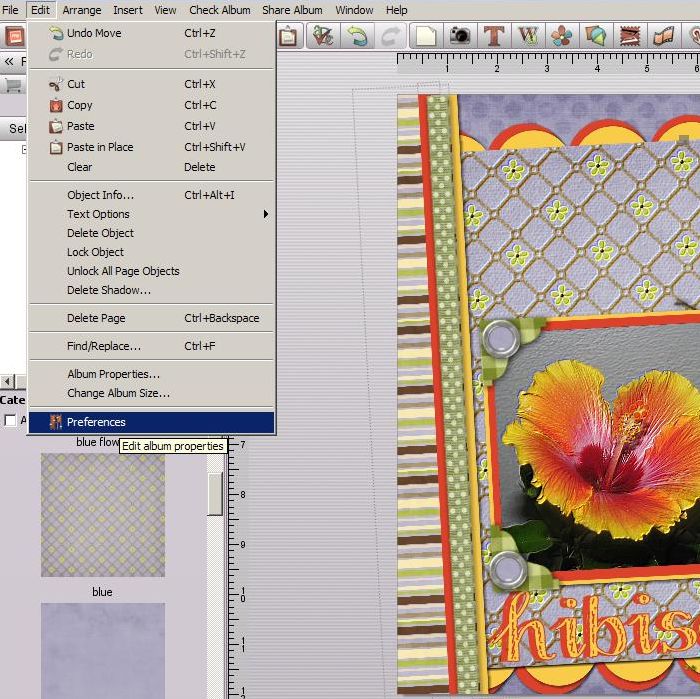
Setting preferences is a time saving feature available in both My Memories Suite and Memory Mixer scrapbooking software.  Do you find yourself using the same fonts, shadows or other features time and time again?  Did you know you can set your preferences to apply throughout an entire album?  Setting preferences will save you time and still give you freedom to tweak things when you want. To set preferences choose Edit> Preferences.

Edit PreferencesYou can set your preferred font for the album you are working on and each album can have the same or different preferences.  As you can see below, you can set the preferred font type & size, bold, italics, underline, alignment and color.

Font PreferencesYou can also change the shadows for each element so your photos, shapes, embellishments and text shadows are all uniform.  Although I set a default for my embellishments I tweak them based on their “thickness”.  Remember with digital scrapping you need to consider how thick an item would be if you were paper scrapping.  If I’m using an embellishment, such as a thick flower, that would stand off the paper more than other embellies I will decrease the opacity and increase the blur.  Thinner items would have a darker, sharper shadow (higher opacity with less blur).  I don’t add a shadow to text that would appear hand written so I wouldn’t set a shadow for text.  If I’m using text as a title that would traditionally be raised, I’ll add a shadow to it.

Shadow PreferenceIf you use the grid or snap to grid feature you can also set these preferences as well.  You can display the grid based on pixels, inches or millimeters.

Grid PreferencesIn addition, you can set the following items as desired.  Captions, if checked, will enable auto caption which will display the name of the photo file below the photo.  Photo Cache uses caching technology to store thumbnails and make loading quicker.  You can also show or hide warning messages.  These messages differ in each program.

I think setting your preferences is definitely worth the effort and will make your album uniform while allowing you to tweak the settings as desired.

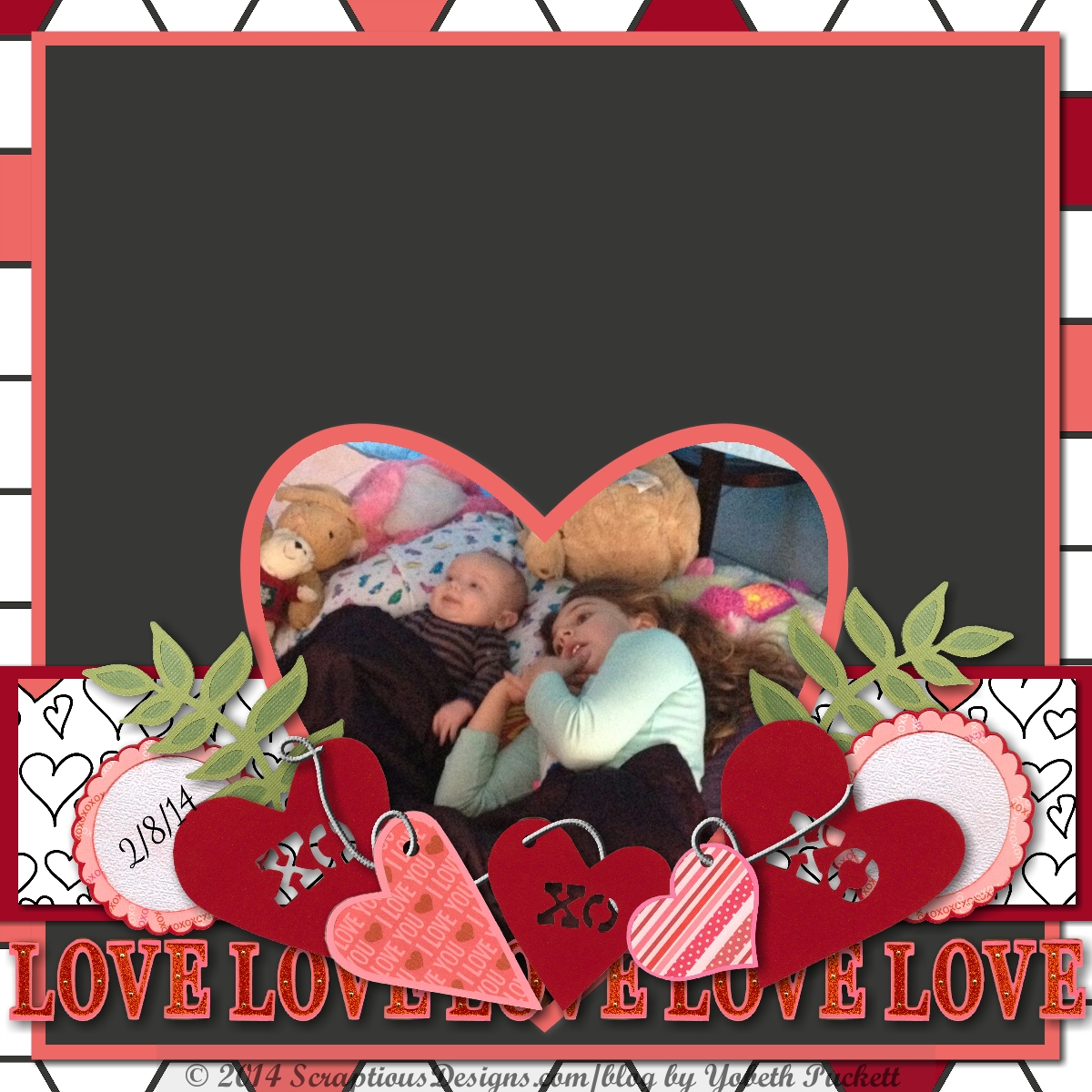


Photo Tiling in My Memories Suite

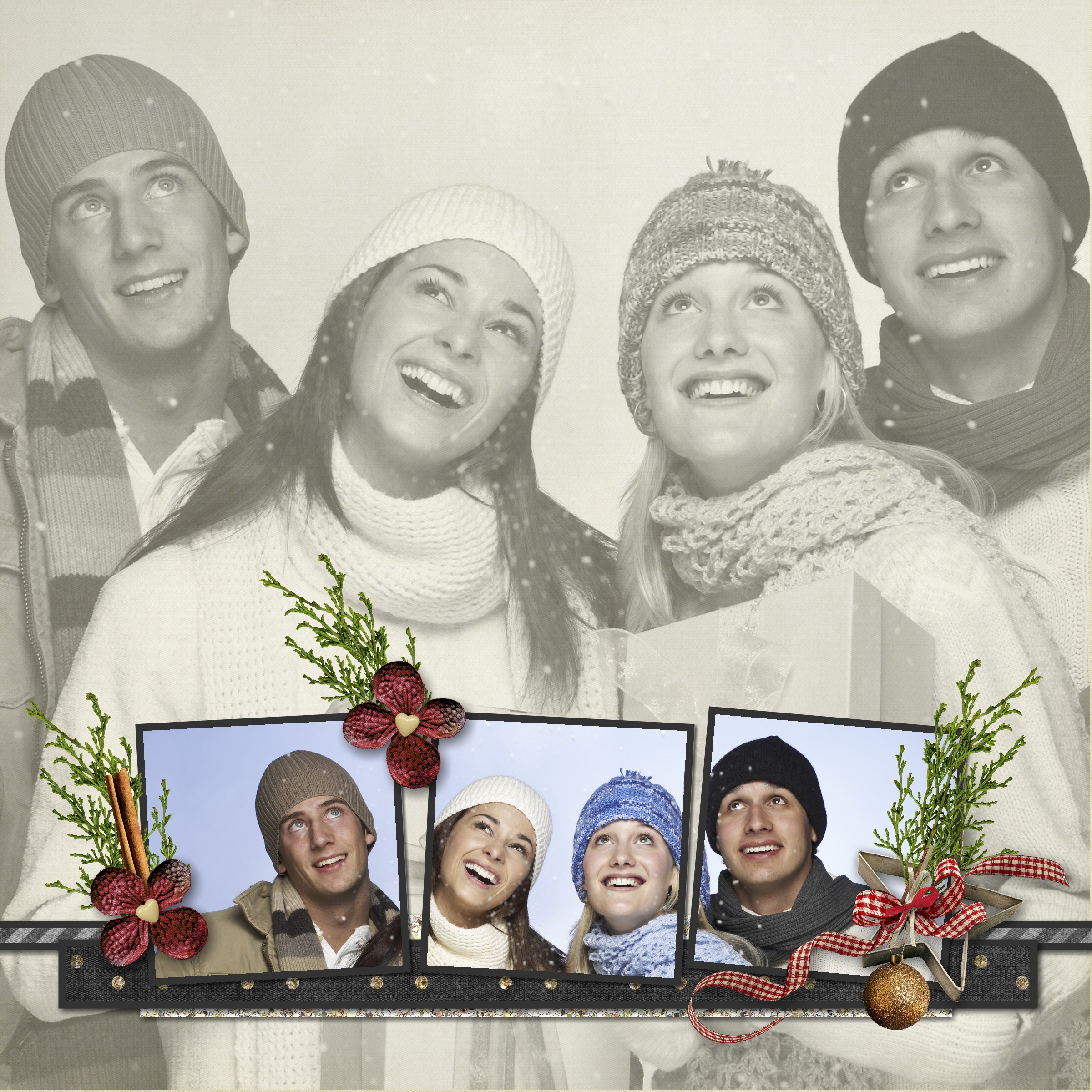
Have you tried the My Memories Suite photo tiling feature yet?  I really love this technique and use it quite often.  In the scrapbook page below I used a couple of features available in My Memories Suite.  First I changed the larger photo color to sepia using photos effect.  Then I used the photo tiling feature to separate the original color photo across three photo boxes.  Once the photo is placed in the three boxes you can ungroup them and then work with each photo box individually to tweak the placement of each portion.  It’s a very versatile effect and a useful scrapbooking idea.

Photo Tiling in My Memories

How to Remove Guides in My Memories Suite

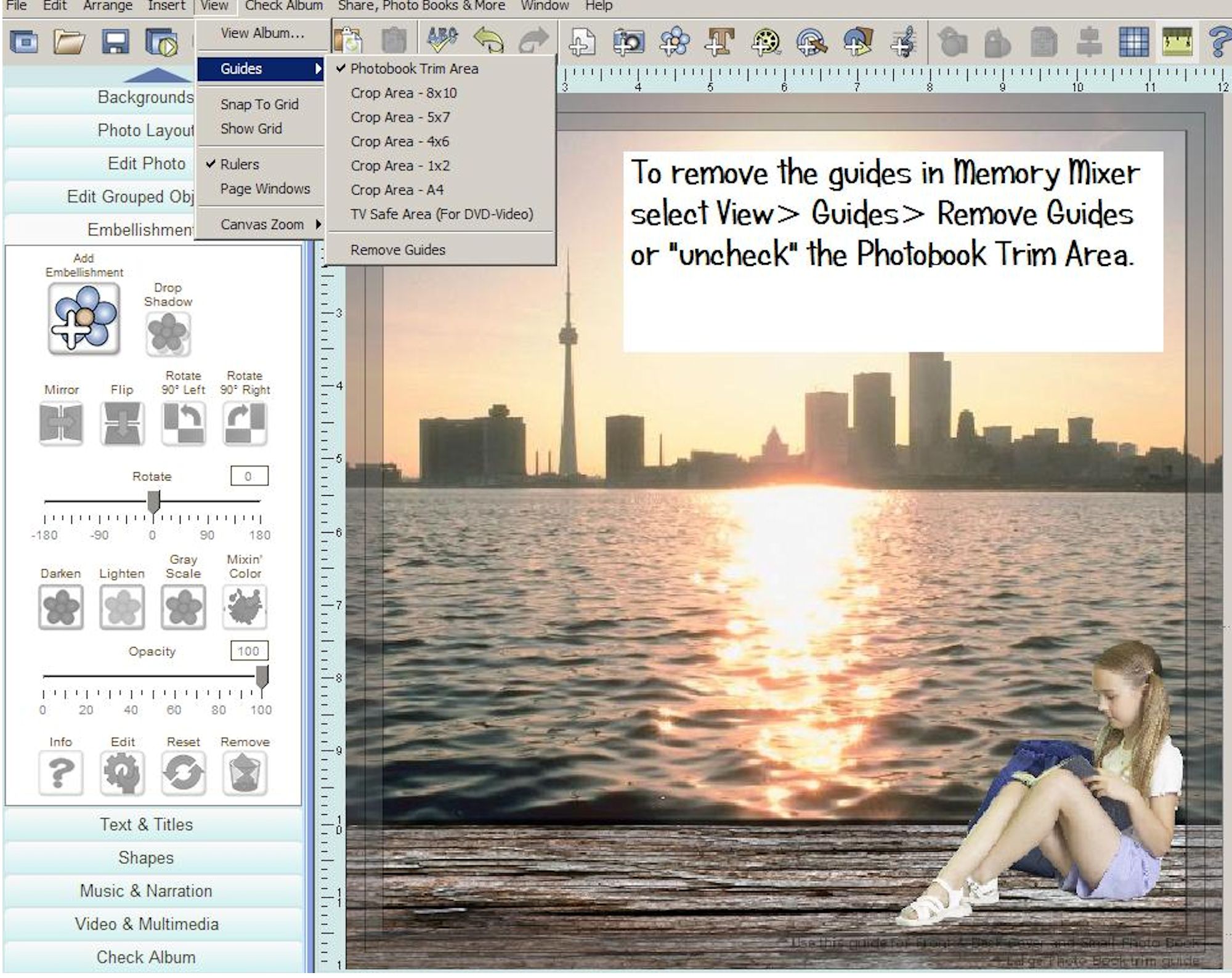
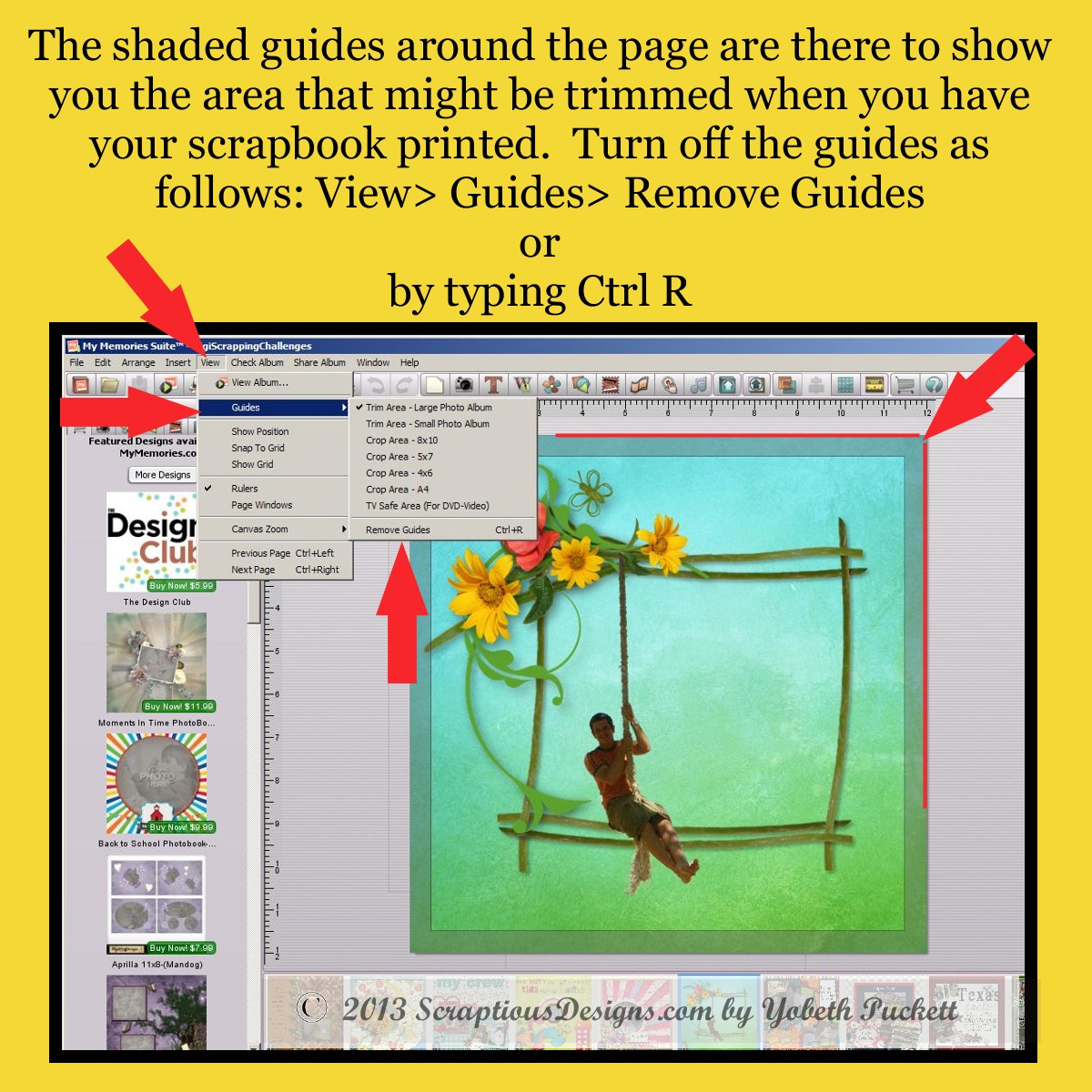
Would you like to know how to remove the trim guides when you’re working on your scrapbook pages in My Memories Suite?  Personally I find them distracting so I turn them off first before I start working on my layouts.  Here are a couple of ways to do it.

Turn Off Guides

Keep in mind that you don’t want to put text or embellishments close to the edge of your scrapbook page because it might get trimmed or be in the fold when printed.  Before having a scrapbook printed you might want to turn them back on (View> Guides> Trim Area) while you are proofing your album.


MyMemories Suite Giveaway Day!

Hallelujah, MyMemories Suite software giveaway day has arrived!  Today, October 26, is the day to get your free, yes free, digital scrapbooking software.

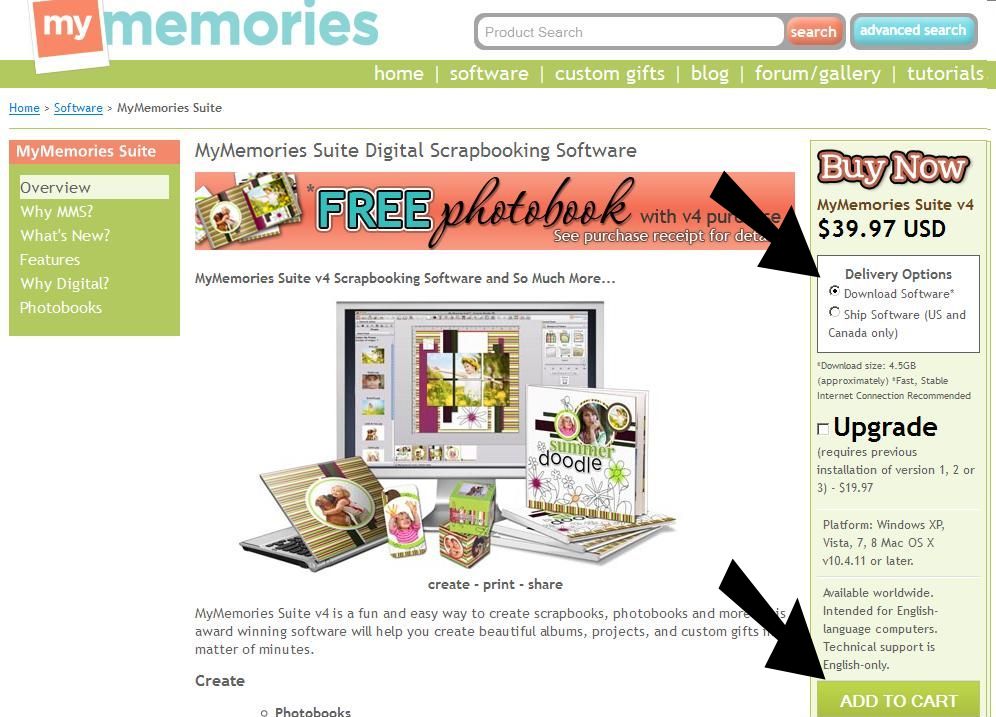
Click here to download the full version of MyMemories Suite v4. On the right side of the page you’ll see “Buy Now” MyMemories Suite version 4.  Be sure “Download Software” is the chosen delivery option since the code is only good for the download option.  Scroll down and click the green “Add to Cart” button, do NOT select “Try It Free”.


MMS Purchase

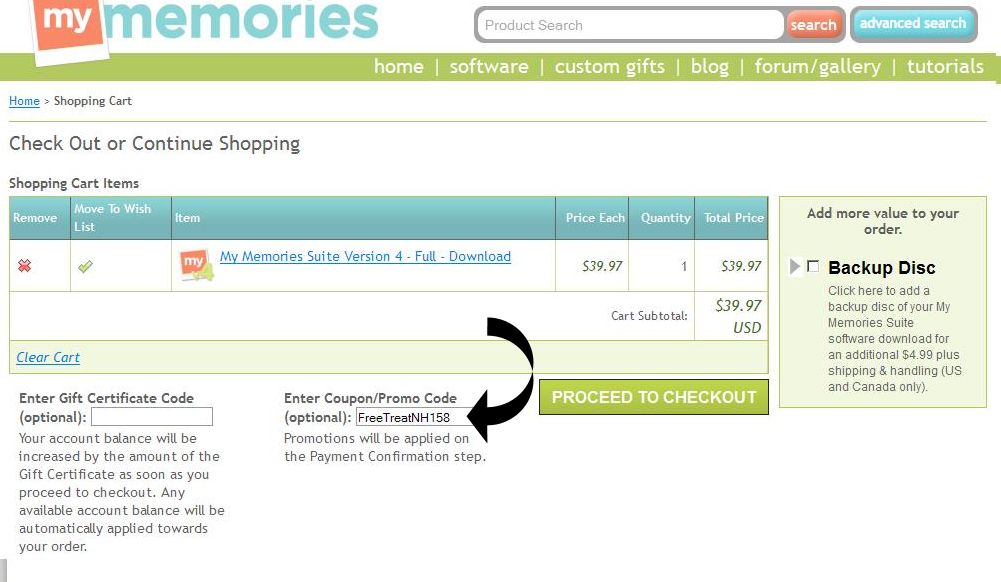
You’ll enter the coupon code to get it free on the next page.  Copy this code FreeTreatNH158 and paste it into the “Enter Coupon/Promo Code” area before checking out.  Be sure to copy/paste so there are no typing errors.  This code is good for today only.   Don’t delay, today’s the day.

MMS Coupon CodeYou will receive a confirming email with download instructions.  Have fun!

MyMemories Software Giveaway Coming Soon

Keep your eyes open because I have a MyMemories Suite software giveaway coming soon!  Yes, you read that right!  If you have been wanting to try one of the top digital scrapbooking software programs available you are in for a treat.  In just a couple of days I will be posting a code that will allow you to get MyMemories Suite software absolutely free.  You may be asking, “What’s the catch?”.  There is none.  Here’s the skinny.

  1. I’ll give you a coupon code.
  2. It won’t cost you a thing.
  3. You’ll be able to download directly to your computer.
  4. You’ll get a full version of the software NOT a “try me” version.
  5. You’ll get the latest version of MyMemories Suite software.  Yes, you’ll get version 4.
  6. No hoops to jump through.  It’s a gift from me to you!

Check back daily for the coupon code to get your FREE download of MyMemories Suite v4.

MyMemories Suite