Category Archives: Tip

Top 5 Shadowing Do's

Shadowing is very important on your digital scrapbook layout to achieve a more realistic look.  Shadows add depth and dimension to an otherwise flat design.  If you’re making a traditional paper layout, shadows are ‘built in’.  Since the elements are truly dimensional they automatically cast shadows.  That makes sense, right?  When creating digital layouts you should try to add realistic looking shadows.

Here is my list of the top 5 DO’s when adding shadows to your digital designs.

1. DO consider how ‘thick’ an element is & how much shadow it would cast if it were ‘real’.  Paper & card stock don’t cast the same shadow as ribbon, buttons or flowers.  The photo below demonstrates how shadows are cast naturally for items of various thicknesses.

Various Depth Items

2. DO think about your ‘light source’ and cast the shadow away from it.  If light is coming from above & to the left the shadow will fall below & to the right.  The photo above is a perfect example of this.

3. DO match the shadow direction for all elements on the layout.  Tip: If you’re using a pre-made, pre-shadowed cluster try to match the shadowing on any other elements you add. In the photos below I used a pre-made pre-shadowed cluster.  Most people tend to shadow to the right & below but the cluster was pre-shadowed to the left & below.  The shadow for the frame looks much better on the right example.  The frame shadow is slightly darker because it is closer to the page than the cluster.
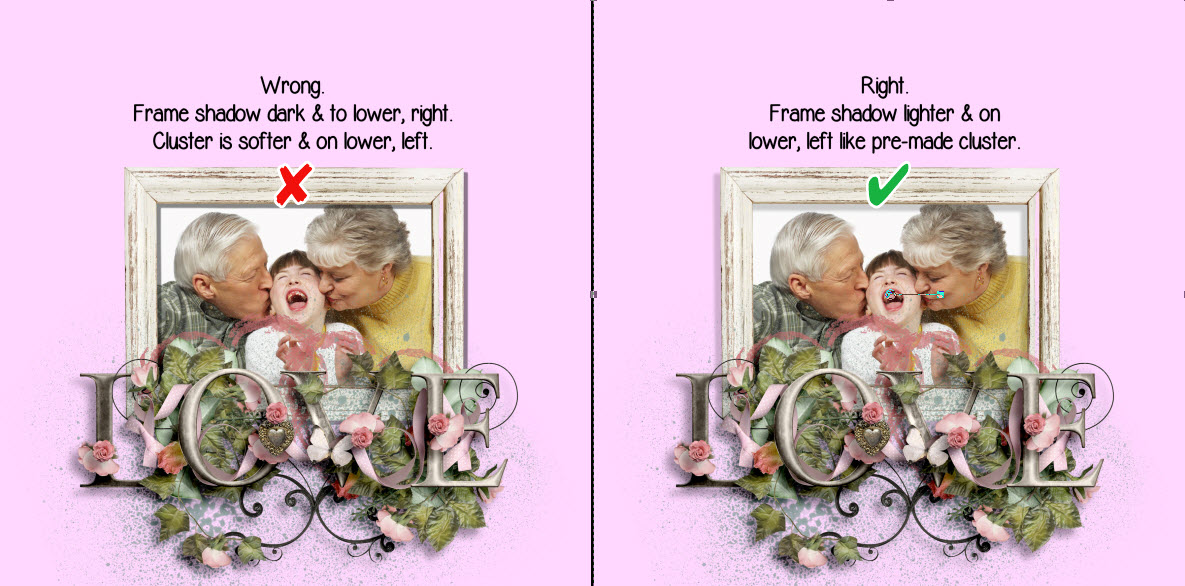
Wrong vs Right

4. DO remember the thicker the element, the lower the opacity should be.  A lower opacity makes shadows more transparent.  Notice in the above example you can see the splatter below the cluster, through the shadow, because the lower opacity makes it transparent.

5. DO raise the blur setting for ‘thicker’ elements.  This will create a lighter, less defined shadow.  Thinner elements shadow will be darker and more defined.

I hope these top 5 shadowing do’s are helpful.  Stay tuned for some shadowing dont’s I’ll be posting in a couple of days.  What do you think?  Do you agree?  Your comments are welcome.


Get My Free eBook for International Scrapbook Day

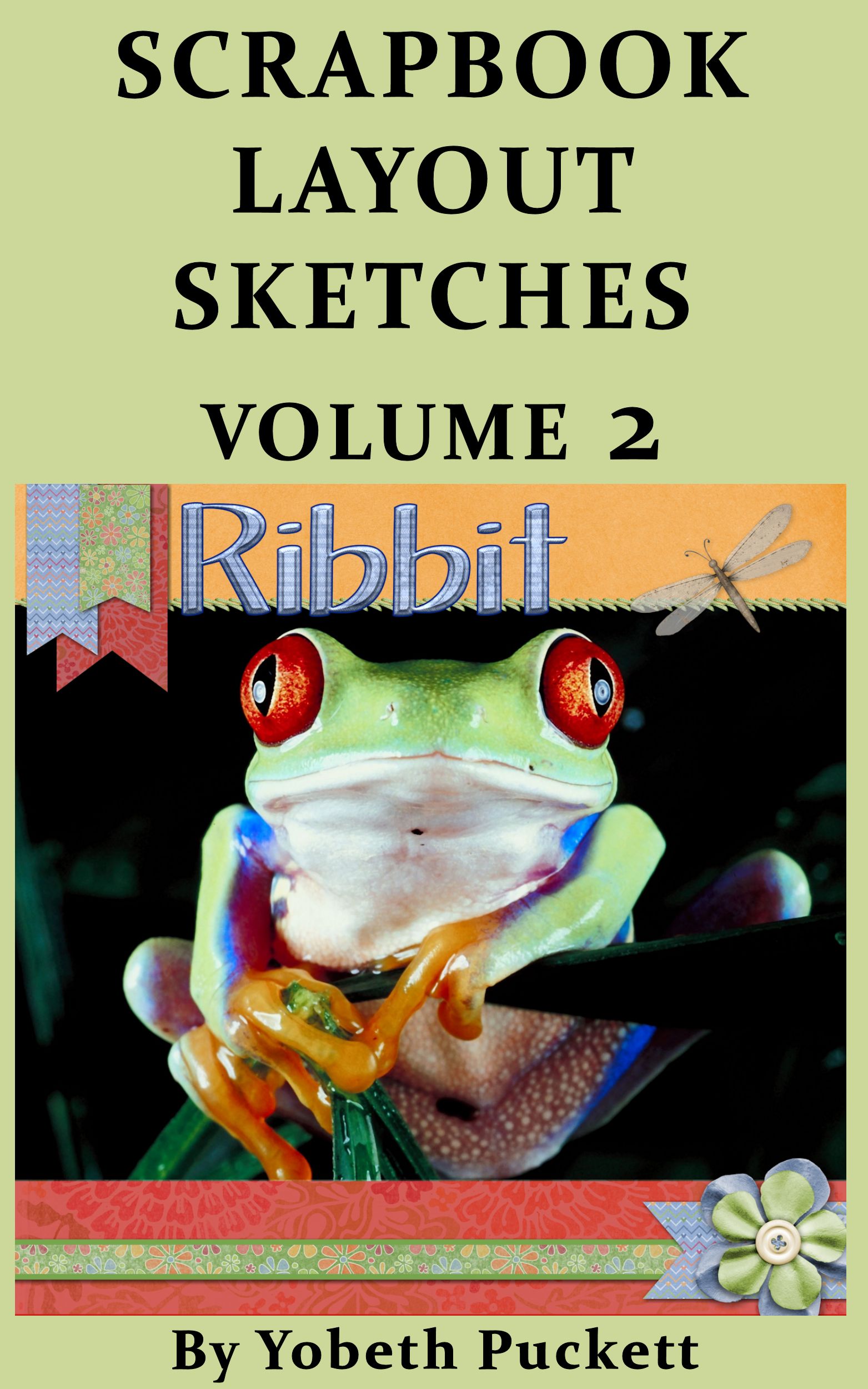
In honor of International Scrapbook Day (iNSD) May 3rd, you can get my eBook Scrapbook Layout Sketches Volume 2 free.  If you are new to scrapbooking, or you’d just like some new layout ideas, you are going to find loads of help in this book.  The book will be available all day from midnight PST to midnight PST on May 3rd.  Click here to get your free book.

Scrapbook Layout Sketches Volume 2


If you find my book helpful and the layouts are appealing, please take a minute to give me a 5 star Amazon rating.  It will let me know I’m on the right track.  If you have any ideas for content you’d like to see in my next eBook you can comment on your review or on this post.

Thank you for the opportunity to let me serve you.

Photo Tiling Tutorial is Now Available

Have you seen any layouts using the photo tiling feature in My Memories Suite?  That is one of my favorite features added in version 4.  If you love the look too, I’ve created a tutorial to show you how to use photo tiling in your layouts.  You can find the tutorial here and I’ve included another example below using this feature.

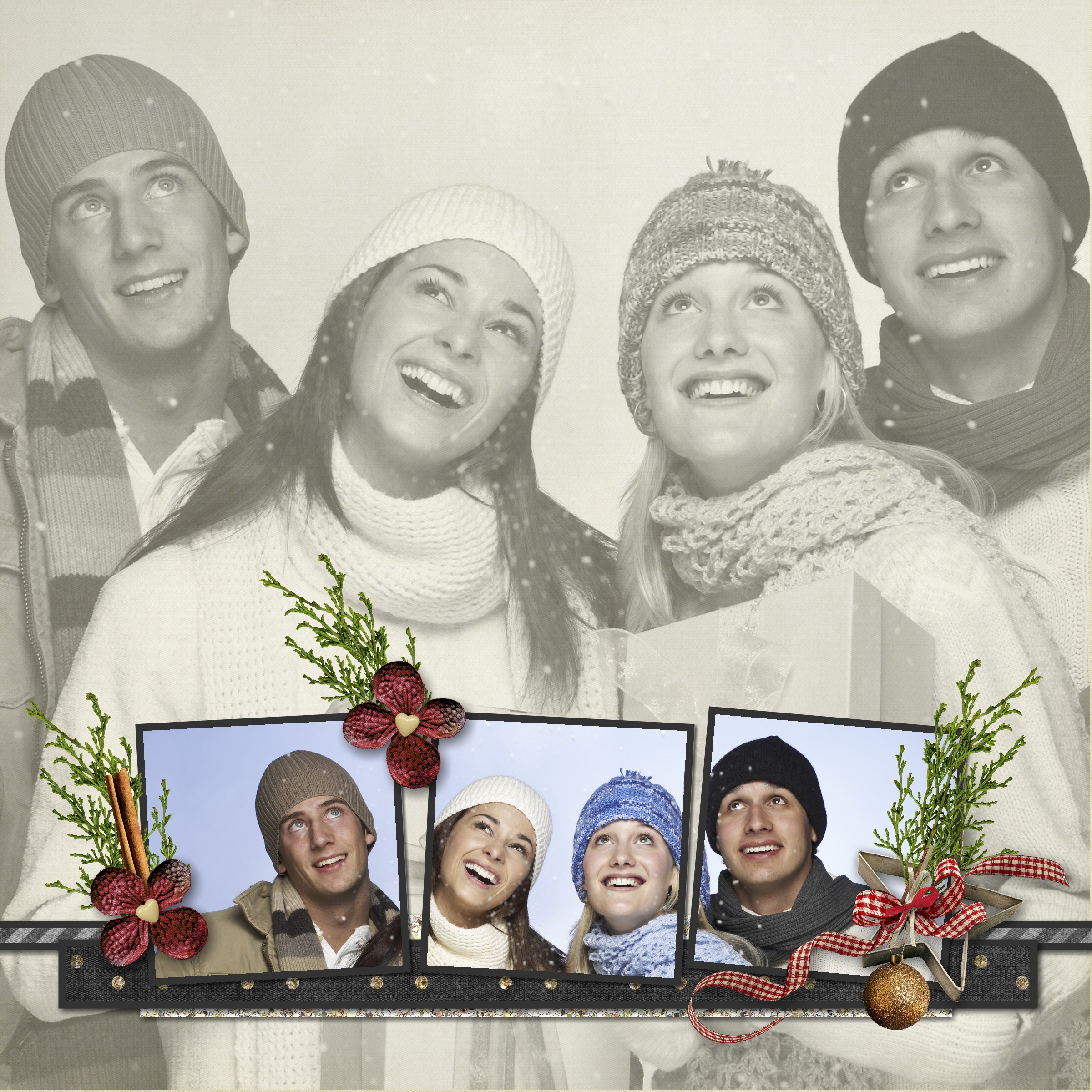
This example is very similar to one of the layouts in the tutorial but for this layout I used the original photo for the entire background.  I also used the photo effect feature to change it to black & white.

What About Blog Posts-004

Setting Preferences

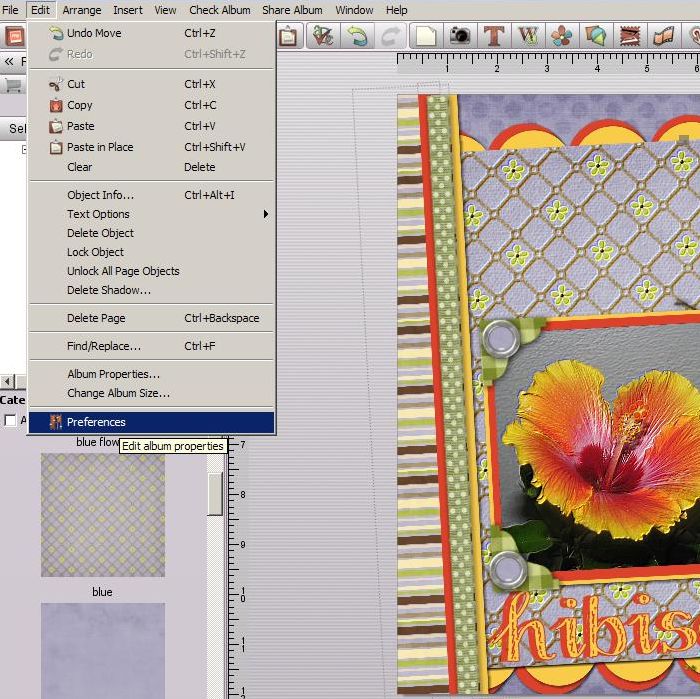
Setting preferences is a time saving feature available in both My Memories Suite and Memory Mixer scrapbooking software.  Do you find yourself using the same fonts, shadows or other features time and time again?  Did you know you can set your preferences to apply throughout an entire album?  Setting preferences will save you time and still give you freedom to tweak things when you want. To set preferences choose Edit> Preferences.

Edit PreferencesYou can set your preferred font for the album you are working on and each album can have the same or different preferences.  As you can see below, you can set the preferred font type & size, bold, italics, underline, alignment and color.

Font PreferencesYou can also change the shadows for each element so your photos, shapes, embellishments and text shadows are all uniform.  Although I set a default for my embellishments I tweak them based on their “thickness”.  Remember with digital scrapping you need to consider how thick an item would be if you were paper scrapping.  If I’m using an embellishment, such as a thick flower, that would stand off the paper more than other embellies I will decrease the opacity and increase the blur.  Thinner items would have a darker, sharper shadow (higher opacity with less blur).  I don’t add a shadow to text that would appear hand written so I wouldn’t set a shadow for text.  If I’m using text as a title that would traditionally be raised, I’ll add a shadow to it.

Shadow PreferenceIf you use the grid or snap to grid feature you can also set these preferences as well.  You can display the grid based on pixels, inches or millimeters.

Grid PreferencesIn addition, you can set the following items as desired.  Captions, if checked, will enable auto caption which will display the name of the photo file below the photo.  Photo Cache uses caching technology to store thumbnails and make loading quicker.  You can also show or hide warning messages.  These messages differ in each program.

I think setting your preferences is definitely worth the effort and will make your album uniform while allowing you to tweak the settings as desired.


How to Remove Guides in My Memories Suite

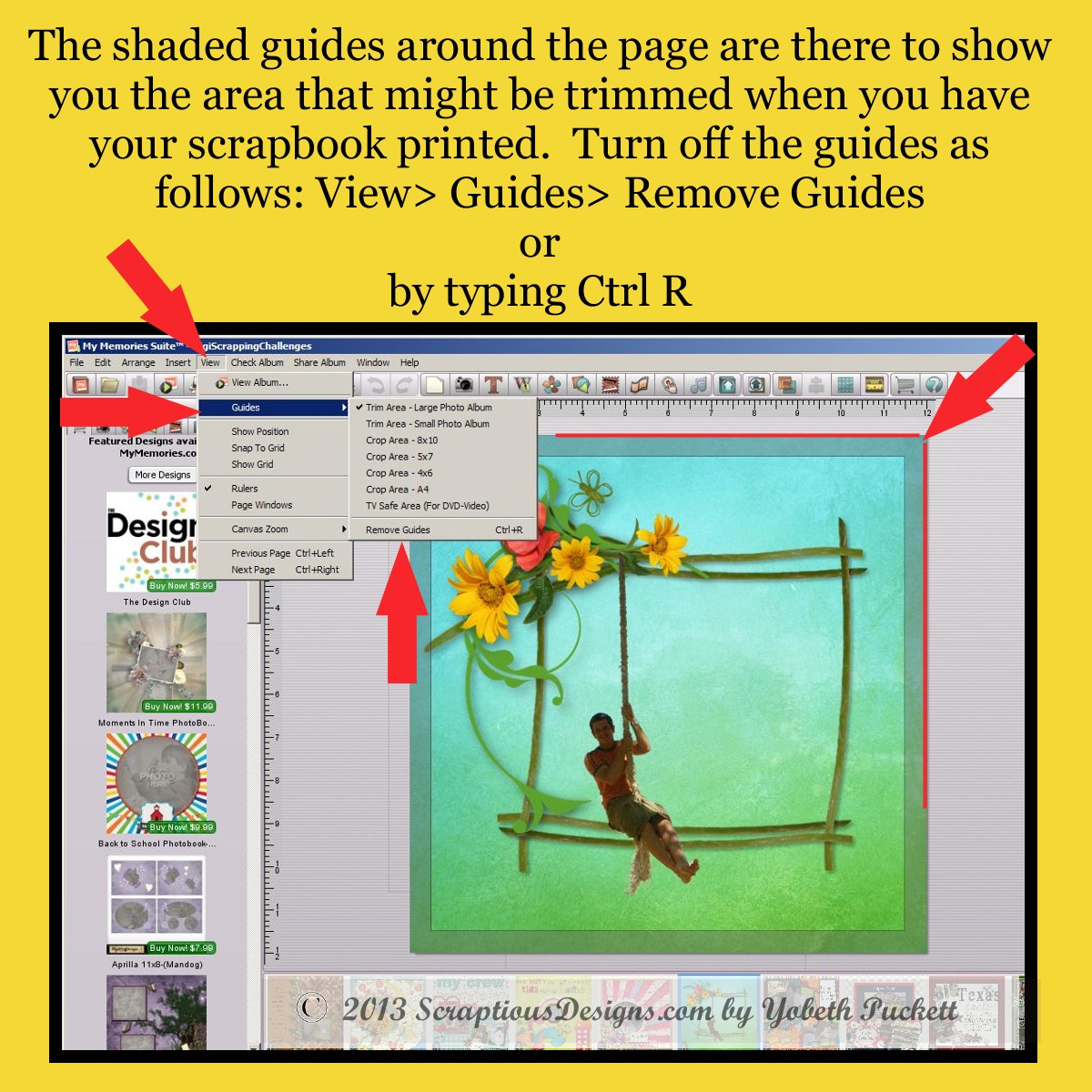
Would you like to know how to remove the trim guides when you’re working on your scrapbook pages in My Memories Suite?  Personally I find them distracting so I turn them off first before I start working on my layouts.  Here are a couple of ways to do it.

Turn Off Guides

Keep in mind that you don’t want to put text or embellishments close to the edge of your scrapbook page because it might get trimmed or be in the fold when printed.  Before having a scrapbook printed you might want to turn them back on (View> Guides> Trim Area) while you are proofing your album.


Get Ready for iNSD

It’s time to get ready for iNSD which is less than two weeks away.  If you’re new to digital scrapbooking you may be wondering what iNSD is all about.  It’s party time in the digi scrap world.  Although iNSD stands for interNational Scrapbooking Day it actually lasts several days.  The “day” is November 2 this year so it’s not too late to get ready.

As part of the celebration there will be loads of freebies from stores and designers worldwide.  They will also have loads of stuff you can buy of course.  My advice is to take some time now to organize your current stash so you will be prepared for the onslaught.  If you’re not uber organized already you’ll want to read Sharon Horswill’s article here.  Even if you are organized already there are some great ideas you may want to incorporate.

I create a temporary folder such as iNSD Nov 2013.  Then download everything I think I’ll use into that folder.  Then I go back later to deal with organization.  That’s when everything gets a second look and more consideration.  Some things are keepers and get filed appropriately and some things go into the trash bin.

So before you download another thing, spend some time sorting through what you already have.  You have a little over a week to get ready for iNSD.  Have fun!

Gifts

What About Close-Ups?

What about Close-ups?  I love them!  Digital cameras, and even cell phone cameras, have come a long way since their inception.  These fantastic cameras make it easy to snap tons of photos.  The quality has improved so much you can zoom in on those great shots to get fantastic close-ups.

When you use a very large close-up in your layout you may not need a lot of embellishments but by strategically placing them you can enhance the overall look.

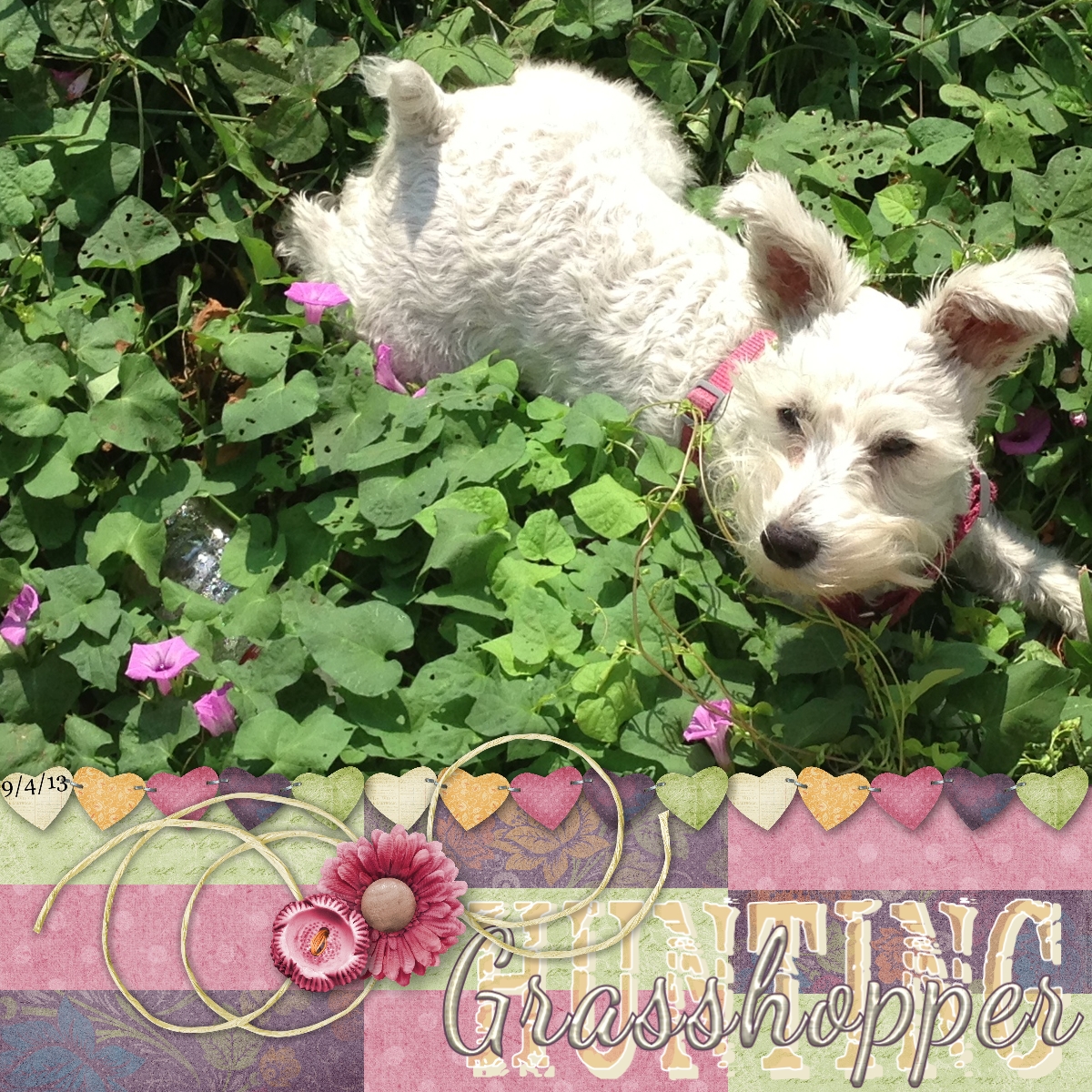
In the example below, I used a picture I took today of our Mini-Schnauzer Sweetie.  She loves to hunt grasshoppers!  I was hoping to get several in a series of hunting shots but one got away and she was off to catch it.  But I love this shot!  The playful feel & muted, minimal embellishments enhance the pic while leaving room for the title “Hunting Grasshoppers”.  So keep going for that great shot, enlarge and crop it.  Close-ups are winners every time!

Hunting GrasshopperCredits: I used layout sketch #6 in my Kindle eBook “Scrapbook Layout Sketches-Volume 2”.  Click the image below to get the book.  The kit is One Fine Day by Kimeric Kreations.  Word Art Dancing Script and TXT Abrasive.

What Makes a Good Album Cover?

What makes a good album cover for the scrapbook you’re making of your honeymoon or family vacation?  I think using one of the photos from your trip works perfectly.  You can add a smaller photo of the happy couple or family, depending on the occasion, to further personalize the album.  If you’re using MyMemories Suite it’s easy to make a title using the same photo that you used for the background.  There is no need for any additional embellishments.   In the end you’ll have a cover that looks professionally designed.

If you’d like to find out how to make an album cover like this check out this short tutorial.

Have the Courage to Cluster

Scrappers should not fear embellies and clusters.  Done right they will take your layouts to the next level.  But there is a right way and a wrong way.  One little flower on a page just gets lost and personally I think bigger is better.  Check out this article for ideas on adding embellishments and clustering on your layouts for a whole new look.  Now even if I don’t change your mind about adding more embellishments to your layouts, it’s good to step out of your comfort zone occasionally and see what you can do.  As for me, I do have a few, a very few, layouts that are fairly minimal so I have stepped out of my zone too!

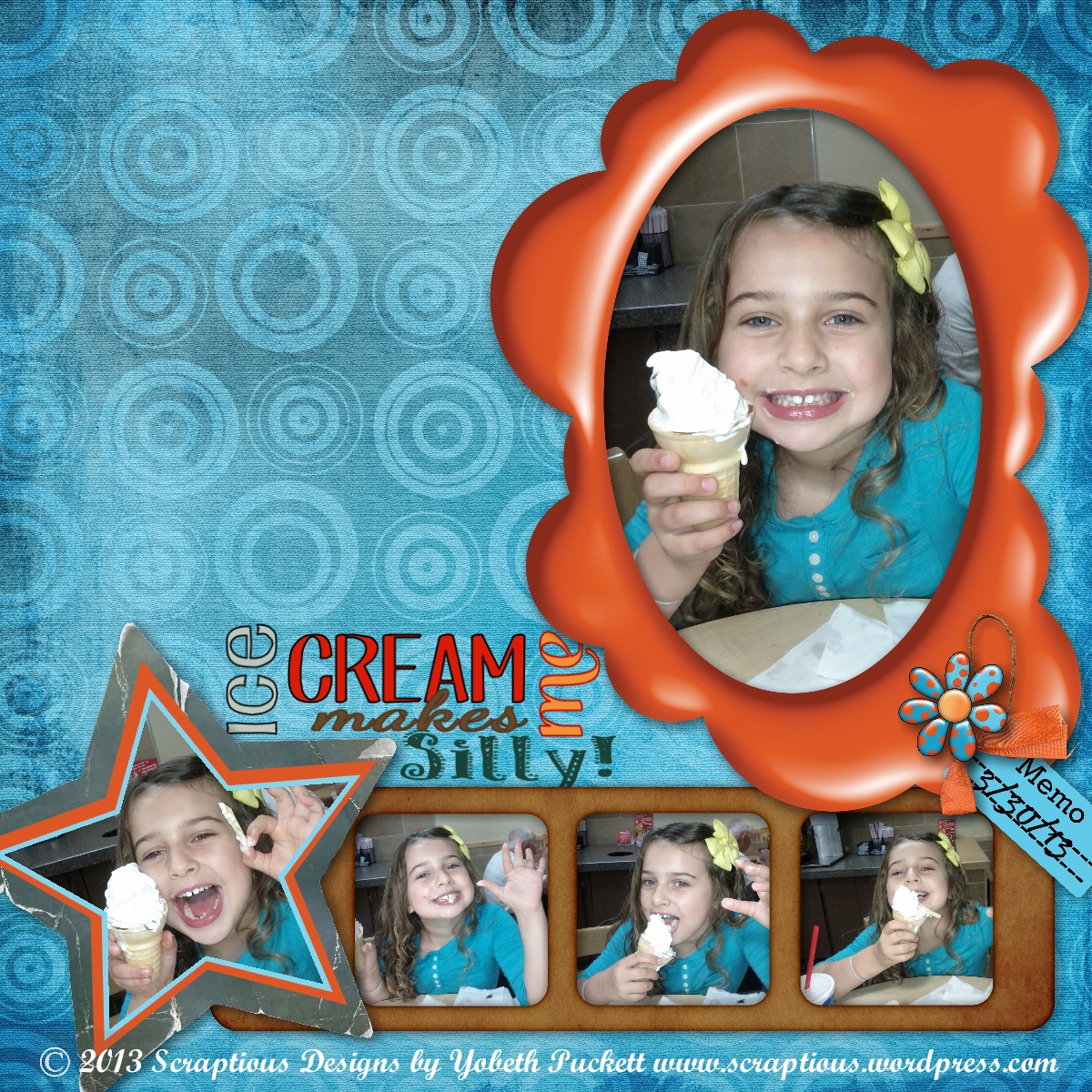
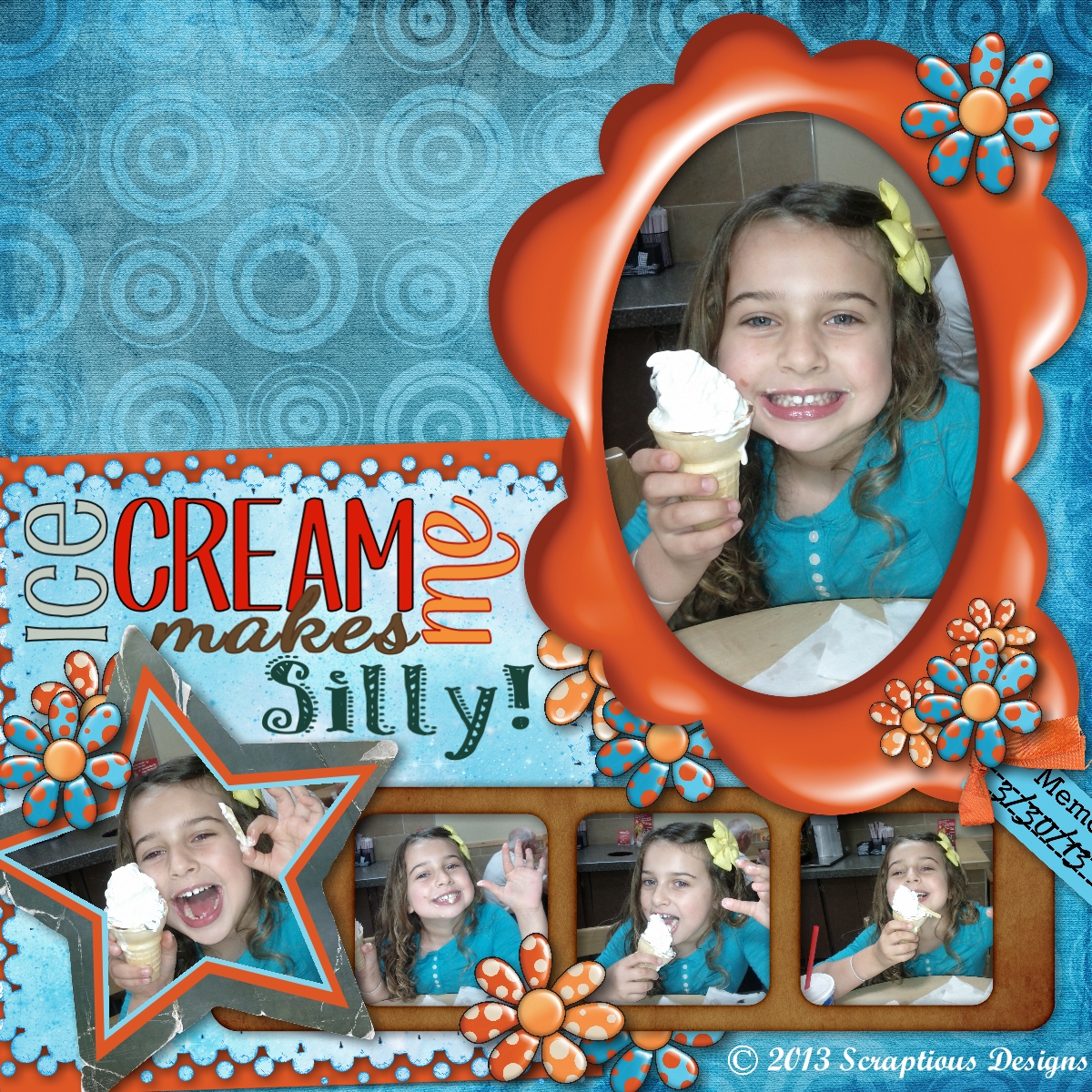
Ice Cream   Ice Cream Makes Me Silly

I think the layout on the right does a better job expressing the fun and silliness shown in the photos.  Do you agree?

Credits: Sundance kit by Laitha Designs.  Fonts: Pupcat, KC This Is Not Goodbye, Dancing Script, Taiga, and Patterns & Dots.

Basics Training Series

I’ve started a series of “basics” training articles comparing MyMemories Suite and MemoryMixer.  In the first article, posted today, we’ll compare prices, discounts available, system requirements, and briefly touch on the features of each program.  Many people have had questions regarding the differences and want to know which to buy.  I will dig deeper as the weeks go by and hopefully answer any questions you may have.  If you have a question you’d like answered, please comment on this post and I’ll do my best to be sure to cover it.  I hope you enjoy this series and covet any feedback or suggestions.  Next week we’ll look at the features of each program in more depth.  Check back often or follow my blog to keep up to date.  You’ll find the first article under the Basics Training tab or click here.


Basics Training Badge